
Here is a Mini User's Guide for MySword (last update: 14 March 2016).
- The New Compact Mode Main User Interface
- The Main User Interface
- Full Screen Mode
- Other Navigation Shortcuts
- The Text Editor
- Other MySword Textile Wiki Tags
- The New WYSIWYG/Rich Text Editor
- Searching
- Reading Plan
The New Compact Mode Main User Interface
The Compact Mode which sports one action bar (tool bar) on the top and no bottom bar was introduced in MySword 6.0 and you can switch to it using the Menu->Compact mode. You can also easily always go back to the Classic Non-Compact mode that has top and bottom button bars by using the Menu->Non-Compact mode.
The 7-inch tablet screen shot below shows the Bible View with the Bible View Action Bar on top using Modern icons (Preference Button style):
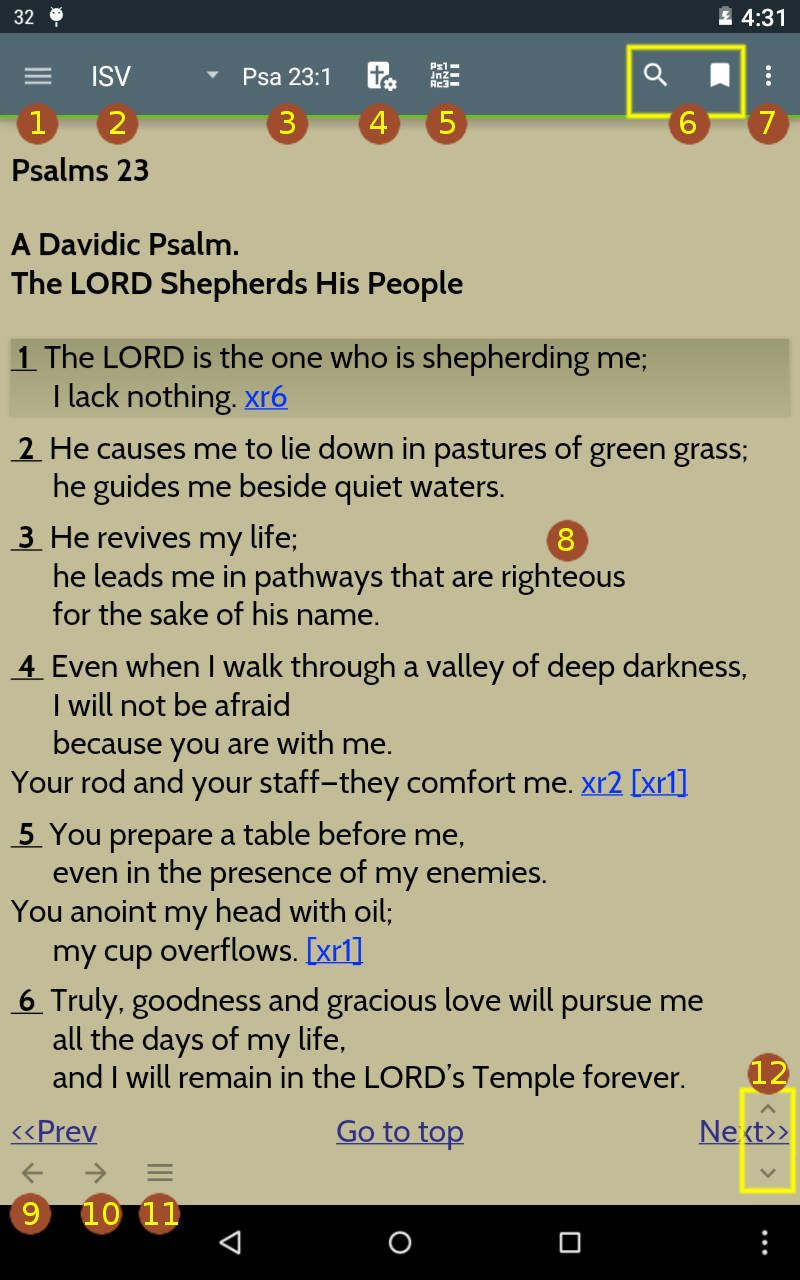
The Book, Commentary, Dictionary, Journal and Personal Notes views also have a similar Action Bar.
The following describe each:
- Home Button
- Tapping the Home icon/button will open the Navigation Drawer from the left. You can also open the Navigation Drawer by swiping from the left. You can then close the drawer by swiping the drawer to the right or by just tapping again the Home button.
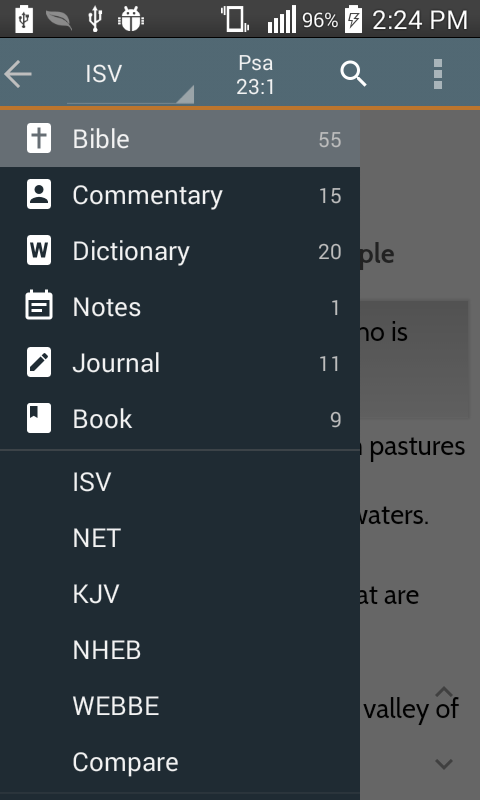
- The Navigation Drawer is used to switch to other module types like Book, Commentary, Dictionary, Journal and Personal Notes views also have a similar Action Bar. To the right of the module type is the number of available modules. Below the module type selectors is a section for context sensitive actions appropriate for the module type.
- In Bible view, there are 6 Bible translation shortcuts to easily go to a specific translation. Other views also have similar shortcuts except the Journal and Personal Notes. You can change the translation/module by long tapping it.
- The Bible view also have Verse List, Bible Preferences and Parallel view buttons.
- In Journal view, actions used to create, edit and delete an entry within the currently selected Journals are there as well as create new journal, edit the properties of the journal and delete the journal.
- Module Selector
- This is used to select a Translation in Bible to be used in displaying content. For other views, it is used to select other modules. The abbreviation shown is the currently selected translation/module.
- Topic/Verse Selector
- Go to a specific verse in Bible, Commentary or Personal notes views; word or topic in Dictionary, Book and Journal views. This opens another window that allows you to select the Book, chapter and verse number or Word/Topic.
- Long tapping this will show a dialog box that will allow you to type the verse directly which also allows abbreviations, e.g. 1Jn1 for 1 John 1, Pr4.7 for Prov 4:7 (this is only available for MySword 3.0 and up for Bible, Commentary and Personal Notes)
- Note that the Bible, Commentary and Personal Notes are automatically synchronized.
- The Dictionary View have a Word Selector while the Journal/Book has a Topic Selector.
- Bible View Preferences
- Shortcut popup to important view preferences (no need to open the Preferences screen) available in Premium version. This includes:
- Paragraph mode
- Words of Jesus in red
- Show Strong's tags
- Strong's links on text
- Show Morphological tags
- Show Translators' notes
- Show Title
- With verse line spacing
- Show highlights
- Show notes
- Show tags
- Interlinear view
- Show transliteration
- Show interlinear text
- Gradient highlight
- Bible link as popup
- Screen always on
- Navigation animation
- Show Cross-references
- Custom Cross-references
- Merge adjacent Bible references
- Horizontal Scrolling (Deluxe feature)
- Parallel difference (Diff)
- Verse List
- Allows you to collect a list of verses similar to Bookmarks. However, unlike Bookmarks, it is easy to add verses from the Search result and also paste verses into the Editor (Journal and Personal Notes).
- Customizable Actions
- Defaulting to Search and Bookmark (the second action is not shown on small screen phones), a maximum of 4 actions can be customized for the Action bar and if the others cannot fit, they are shown on the Overflow menu. Tablets can actually show 4 actions and the example on the top shows only the default 2. Note that this section is not customizable in MySword 6.0 but only in 6.1 and higher.
- To change, go to Menu->Preferences, scroll down to the bottom most and select Compact mode menu (top right). You can change any of these actions to any of the following 10 or None:
- Bookmark
- Copy
- Format (Deluxe feature, demo only in Free or Premium)
- Highlight
- Highlight words (Deluxe version only)
- Preferences
- Tag
- Search
- Share text (Premium and Deluxe versions only)
- Text-to-Speech
- For the details of these actions, please refer to The Main User Interface below.
- Menu/Action Overflow
- Shows the Custom actions that can no longer fit on the Action bar and the main Menu which consists of About, Make a Donation, Copy/Export, Preferences, etc.
- If the Overflow icon is missing just like in some devices with dedicated hardware/virtual buttons, you can still open the menu by the dedicated menu button: it is either the button to the left or right of the center Home screen button at the bottom. In recent Kit Kat / Lollipop Samsung devices, you will need to long tap the button (normally the one with 2 overlapping rectangles used for displaying Recent apps).
- It is also possible that a virtual menu button with 3 dots will appear at the bottom right in tablets just like in the tablet screen shot above.
- Long tap text to show context Popup menu
- Displays a context menu like Search or Look up in a Dictionary the selected text (Deluxe only version and do not appear in Premium or Free); and Format, Highlight, Tag and Share the long tapped verse in Bible view.
- Go Back History
- Use one click/tap to go one step back; use long click/tap to show a list from which you can select.
- You can also use the Back button of the Android device.
- Go Forward History
- Use one click/tap to go one step forward (in case you had gone back); use long click/tap to show a list from which you can select.
- Popup Menu
- Displays context menu actions like Format, Highlight and Tag in Bible view, plus Highlight words, Text-to-Speech, Text-to-Speech Settings, Share content and Split view panes in Bible and other views. The Format, Highlight, Tag and Share is for the currently selected verse in Bible view.
- Page Up/Down
- Use this to move the page up and down.
The Main User Interface
The screen shot below shows the Bible View with the Bible View Buttons Bar (#1) on top and the Master Buttons Bar (#2) on the bottom displayed using Lollipop Tablet but shrunk to 60% so that it can fit well in this web page (in your Android smartphone, you will need to scroll the two bars by swipe left/right gestures to see all the buttons):
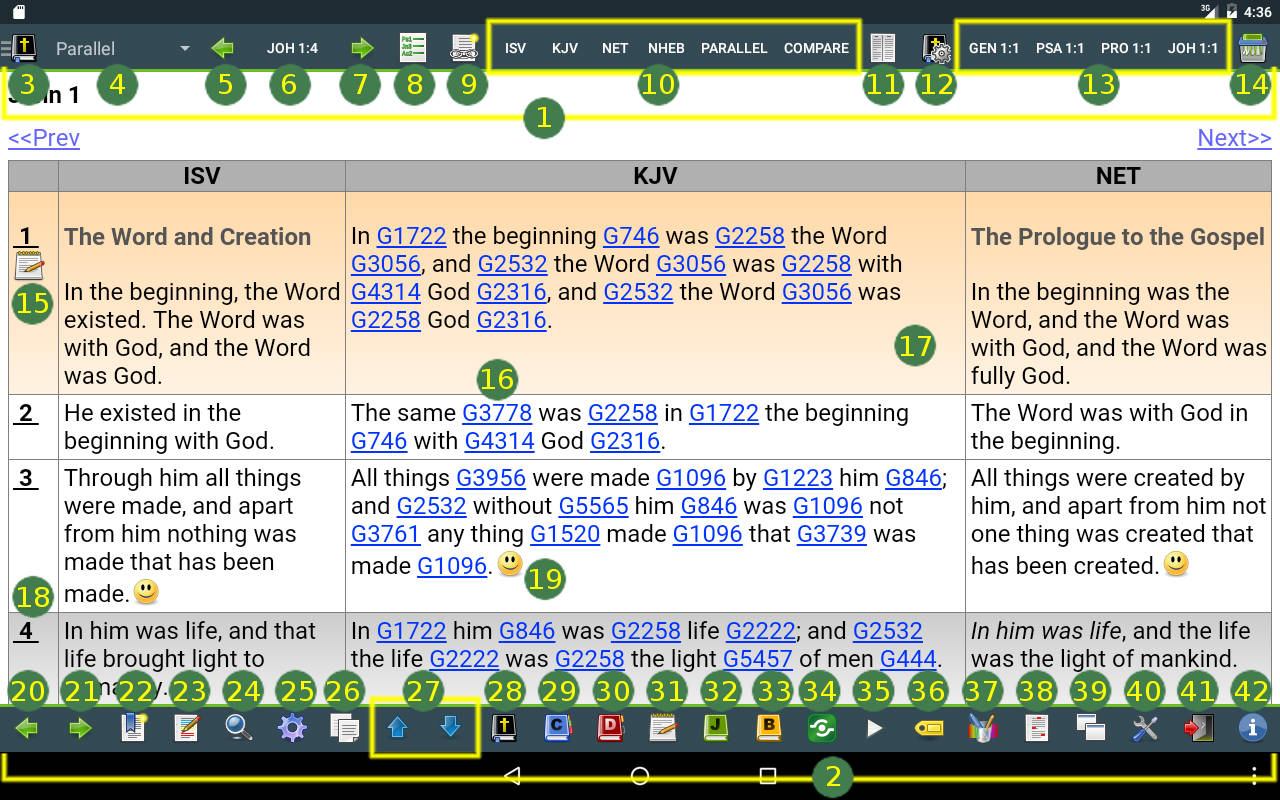
The above Dark Material theme is only available in Lollipop and higher, while an old Dark Holographic theme is available on Honeycomb up to Kit Kat. Old versions of MySword and Android use the Default theme. Also, the above sports the MySword 5.0 Button style Drawer Top - Classic, available also on Honeycomb and up, while the screen shot below uses Drawer Top - Modern.
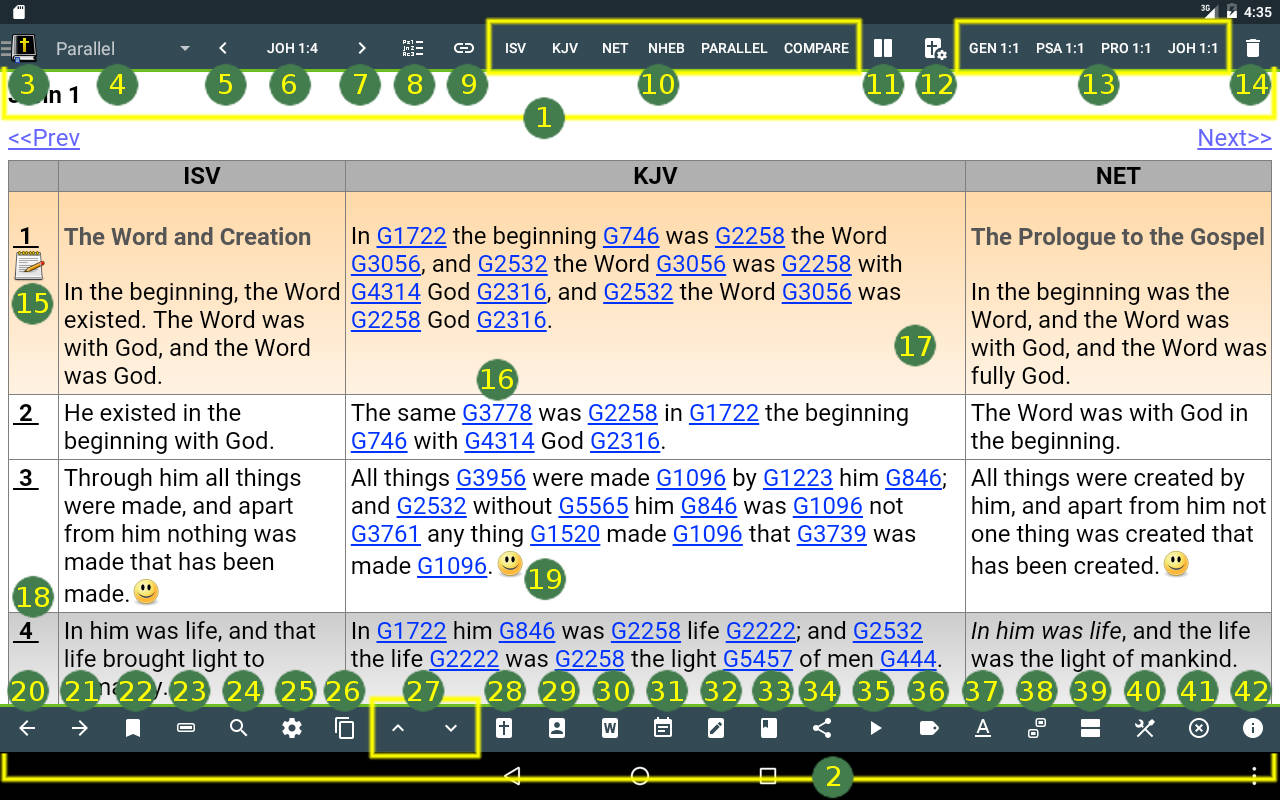
The following describe each:
- Bible View Buttons Bar
- Used to navigate the Bible(s).
- The Commentary, Dictionary, Personal Notes and Journal/Book Views have similar Top Buttons Bar, albeit with less buttons.
- Master Buttons Bar (Bottom Button Bar)
- Used to execute different general functions not specific to the Bible View (or Commentary, Dictionary, Personal Notes and Journal/Book Views) like for example Go Back (history), Go Forward (history), Menu, Search, etc.
- This is present in all five views: Bible, Commentary, Dictionary, Personal Notes and Journal/Book Views.
- Module Type/View Selector
- Used to switch to a different Module Type or View (Commentary, Dictionary, Personal Notes and Journal/Book).
- If the Button style is set to Drawer Top/Both, the Text button will be replaced by an icon instead just like in the above screen shots.
- Bible Module or Translation Selector
- Aside from regular Bibles like KJV, ISV, NET, etc, there are two additional entries at the end: Compare and Parallel. The screen shot above shows a sample Parallel view.
- The Commentary, Dictionary and Journal/Book Views have similar button for selecting a specific Commentary, Dictionary or Journal/Book, respectively.
- Go to Previous Chapter/Verse
- Go to the previous chapter for non-Compare; go to the previous verse for Compare.
- Verse Selector
- Go to a specific verse. This opens another window that allows you to select the Book, chapter and verse number.
- Long tapping this will show a dialog box that will allow you to type the verse directly which also allows abbreviations, e.g. 1Jn1 for 1 John 1, Pr4.7 for Prov 4:7 (this is only available for MySword 3.0 and up)
- Note that the Bible, Commentary and Personal Notes are automatically synchronized.
- The Commentary and Notes Views also have this. The Dictionary View have a Word Selector while the Journal/Book has a Topic Selector.
- Go to Next Chapter/Verse
- Go to the next chapter for non-Compare; go to the next verse for Compare.
- Verse List
- Similar to Bookmarks (#21), you can use this to add the current verse to the list of verses, delete an existing verse, or go to a verse. But this is more powerful than Bookmarks as there is better integration with Search (add search results to verse list) and the Editor (paste verses from the verse list).
- Edit Cross References
- Use this to edit the Custom Cross References shown at the end of the verse. You can add, edit or delete verses related to the current verse.
- Note that this is a Deluxe feature.
- Favorite 6 Translation Shortcuts
- This is a one click/tap away to a specific translation (or Compare/Parallel) which can be very useful as the Bible Module/Translation Selector (#4) requires two clicks/taps.
- Note that its usefulness is increased if you arrange the Bible View Buttons.
- To change the shortcut, long press/tap the button and a list will show from which you can select. After selecting a new one, the new translation will automatically be selected.
- Note that in the old version of MySword, there are only 4 of these buttons but was later upgraded to 6 so you may need to rearrange the buttons so that they will all be together.
- Switch to Parallel View
- Use this to switch to Parallel View and select the Bible translations you want to be shown in parallel. The screen shot above shows 3 Bible translations.
- Note that this is a Premium feature. The Free version of MySword has a demo that allows the user to see the Parallel feature in action but it is only limited to the first chapters of every book of the Bible.
- Bible View Preferences
- Shortcut popup to important view preferences (no need to open the Preferences screen) available in Premium version. This includes:
- Paragraph mode
- Words of Jesus in red
- Show Strong's tags
- Strong's links on text
- Show Morphological tags
- Show Translators' notes
- Show Title
- With verse line spacing
- Show highlights
- Show notes
- Show tags
- Interlinear view
- Show transliteration
- Show interlinear text
- Gradient highlight
- Bible link as popup
- Screen always on
- Navigation animation
- Show Cross-references
- Custom Cross-references
- Merge adjacent Bible references
- Horizontal Scrolling (Deluxe feature)
- Parallel difference (Diff)
- Top 4 Bookmarks Shortcuts
- Use this to automatically go to your bookmark.
- These automatically synchronizes with the bookmarks you managed using the Bookmark button (#20). So you will have to use the Manage Bookmark button (#20) so change the bookmarks.
- Note that in the old version of MySword, there are only 2 of these buttons but was later upgraded to 4 so you may need to rearrange the buttons so that they will all be together.
- Delete Bible Module
- Use this to permanently delete a Bible module. To prevent accidental deletion, you will be asked to enter the first 3 characters of the name or abbreviation of the module.
- The other views (Commentary, Dictionary and Journal/Book) also have similar button.
- Notes Indicator
- The notes icon indicate that you have some personal notes on this verse.
- Clicking/tapping it will automatically bring you to the Personal Notes View.
- Strong's Number Link
- Click/tap to go to the Dictionary View showing the entry for the Strong's number.
- Note that a Strong's Dictionary must be downloaded and placed into the Modules Path (which can be done using Menu->More->Download Modules) so that this feature can be used.
- The Strong_Lite Dictionary module is actually a combination of BDB, Thayer and Strong's Dictionaries.
- There are also other types of Link not illustrated above:
- Translators'/Reference Notes Link - tapping this will show the translators' notes in a popup window.
- Bible Link - normally found in Commentaries and Books and also can be added to your Personal Notes and Journals. Tapping this will show the verse in the Bible view.
- Commentary Link, Dictionary Link and Journal Link - can be added in your Personal Notes and Journals
- Scrollable View
- The Bible, Commentary, Dictionary, Personal Notes and Journal/Book Views' content pages are scrollable. You can just use your fingers and swipe up and down.
- Verse Link Select
- The Verse Number Link at the beginning of the verse is clickable/tappable to make that verse the current verse. Notice that the text in the Verse Selector (#6) will also automatically change.
- This is useful for Comparison, adding Bookmark, Highlight, Personal Notes, etc.
- In the screen shot above, the currently selected verse is verse 4 that is why the Verse Selector button shows Joh 1:4.
- Tag
- Tag inserted using the Tag button (#33).
- The tag can contain notes that can be displayed by tapping the icon.
- There is also text tag and even adhoc text tag.
- The full functionality of Tag is only available in Deluxe version of MySword.
- Go Back History
- Use one click/tap to go one step back; use long click/tap to show a list from which you can select.
- You can also use the Back button of the Android device.
- Go Forward History
- Use one click/tap to go one step forward (in case you had gone back); use long click/tap to show a list from which you can select.
- Manage Bookmarks/Go to Bookmark
- You can use this to add the current verse to the list of Bookmarks, delete an existing Bookmark, or go to a Bookmark.
- Highlight
- You can use this to highlight the current verse or range of verses, hide/show the highlights, or remove the current highlight for a verse or range of verses. This opens up a highlight color selection screen
- Long tapping this button will automatically highlight the selected verse using the previously selected highlight without opening the highlight color selection screen.
- This is only applicable to the Bible View.
- Search
- Use this to perform keyword search on Bible, Commentary, Dictionary, Personal Notes or Book/Journal.
- You can also just use the Search hardware button of your Android device.
- Menu
- Shortcut to go to the Menu.
- You can also just use the Menu hardware button of your Android device.
- For Samsung devices, the Menu capacitive button is the button either to the left or right of the the center Home button at the bottom. If single tap did not work, try long tap. For other devices, the menu button is a virtual button similar to Samsung, or the 3 horizontal dots at the far right.
- Copy
- Use this to copy the current verse for Bible or content for other module types other than the Bible. For Bible, long tap to copy a verse range.
- Page Up/Down
- Use this to move the page up and down.
- Go to Bible Shortcut
- This is a one click/tap away to the Bible View.
- Go to Commentary Shortcut
- This is a one click/tap away to the Commentary View.
- Go to Dictionary Shortcut
- This is a one click/tap away to the Dictionary View.
- Go to Personal Notes Shortcut
- This is a one click/tap away to the Personal Notes View.
- Go to Journal Shortcut
- This is a one click/tap away to the Journal View.
- Go to Book Shortcut
- This is a one click/tap away to the Book View.
- Share
- Use this to share a verse or range of verses to others via Messaging services like SMS or Email.
- This is a Premium feature.
- Text-to-Speech (Talking Bible)
- Use this in Bible view to read the Bible audibly using the built-in Text-to-speech feature of Android. Please configure properly the Text-to-speech of Android first to make this feature work. You can go to Android Settings->Language & input->Text-to-speech output.
- Long tap will open the Text-to-speech Settings screen that will allow you to set the pitch, speed, volume and even background music.
- With the Deluxe edition of MySword, you can also use Text-to-speech for other views like Commentary, Dictionary, Personal Notes, Books and Journals.
- Manage Tags
- Use this to add, edit, delete, position tags and even put notes to tags.
- The full functionality of Tag is only available in Deluxe version of MySword.
- Format
- Use this to highlight words and phrases in a text through any combination of Bold, Italic, Underline, text Color, Highlight (background color) and Box color.
- The full functionality of Format is only available in Deluxe version of MySword.
- Highlight words
- Use this to highlight words similar to Search highlight but for the main views (Deluxe feature). This is useful for temporarily highlighting words you are studying.
- Split Screen
- Switches to multiple screen/views.
- This is a Deluxe feature.
- Preferences
- Opens the Preferences window. The other alternative is to use the Menu->Preferences.
- Long tapping this button will automatically go to the Color Theme selection screen.
- Exit
- Instead of using the Menu (->More) ->Exit, this is a single tap shortcut. An dialog box asking for your confirmation will popup.
- Stats and other info
- Shows a menu mostly about statistics and word analysis:
- About Module - information about the module
- Word Frequency (Deluxe feature) - given keywords, determine the occurrences per Bible chapter and list from highest to lowest to know where those keywords occur most. Note that this is a string search if there is no Exact / No accent search index for the module, though case-insensitive (in English), it will still include prefixes, infixes, suffixes and words in titles and notes for Bibles. Commentary and Personal notes are per verse while Dictionary, Journal and Book are per entry/topic. See Menu->About->Word Occurrence.
- Word Occurrence (Deluxe feature) - given a Bible verse range or a verse for Commentary and Notes or a topic for other module types, list the words found and the frequency. See Menu->About->Word Frequency.
- Frequent Word Sets (Deluxe feature) - given a range of verses/records, minimum number of supporting records, minimum size of the word set and an optional contains filter, all the frequent word sets are extracted sorted by frequency. You can use this to get the most common word pairs, triplets, quadruplets, etc. For example in KJV, the most common pair is {Lord, God} occurring 1600 times, triplet {Lord, Israel, God} 340 times.
- Frequent Phrases (Deluxe feature) - given a range of verses/records, minimum number of supporting records, minimum size of phrase and an optional contains filter, all the frequent phrases are extracted sorted by frequency. For example in NHEB, the most common 5 word phrase is "the word of the Lord" occurring 251 times, while the second is "the house of the Lord" occurring 202 times (hey, it is God's word, remember).
- Extract verses - used to display all the verses in the page using the current Bible module.
- Shows a menu mostly about statistics and word analysis:
Full Screen Mode
MySword supports Full Screen mode in the Main Views (Bible, Commentary, Dictionary, Personal Notes and Journal/Book Views) as well as the Search Window.
- You can use the Menu->Preferences->Toggle Full screen to switch between the Normal and Full Screen mode.
- Also, you can just double tap the Bible, Commentary, Dictionary, Personal Notes or Journal/Book contents (take care not to tap any hyperlink as it will be activated also; preferably double tap blank portions) to toggle between views.
- In Full Screen Mode, you can temporarily show/hide the Button bars, Top (#1) and Bottom (#2), by single tapping the screen (again, take care not to tap any hyperlink).
- In case there are so many links like the case of KJV with Strong's numbers, you can short-swipe left or right (about 33 to 50 pixels long) to show/hide the Button bars.
Other Navigation Shortcuts
Here are other navigation shortcuts:
- Go to Previous/Next Chapter/Verse
- Long swipe left or right (150 pixels or more in one second) on the contents.
- Volume Control Up/Down
- To scroll one page up/down the contents in Bible, Commentary, Dictionary, Personal Notes, Journal/Book, Search Results and Edit Text box of Add/Edit Personal Notes or Add/Edit Journal Entry.
- Hardware Search button
- Open Search Window
The Text Editor
The Editor is used for Personal Notes (Verse Notes) or Journal Entries. For old versions of MySword (4.4 or lower), MySword used a modified version of Textile Wiki (instead of pure HTML tags which is more cumbersome to edit; textile wiki simplify markup tags using single symbols). But starting with MySword 5.0, a WYSIWYG or Rich Text Editor is now available for Jellybean and higher but complete functionality is only available in Kit Kat, Lollipop and higher.
The screen shot below shows the Journal Entry Editor in WYSIWYG/Rich Text mode with the editing buttons on top and the bottom displayed using Lollipop Tablet but shrunk to 60% so that it can fit well in this web page (in your Android smartphone, you will need to scroll the top bar by swipe left/right gestures to see all the buttons):
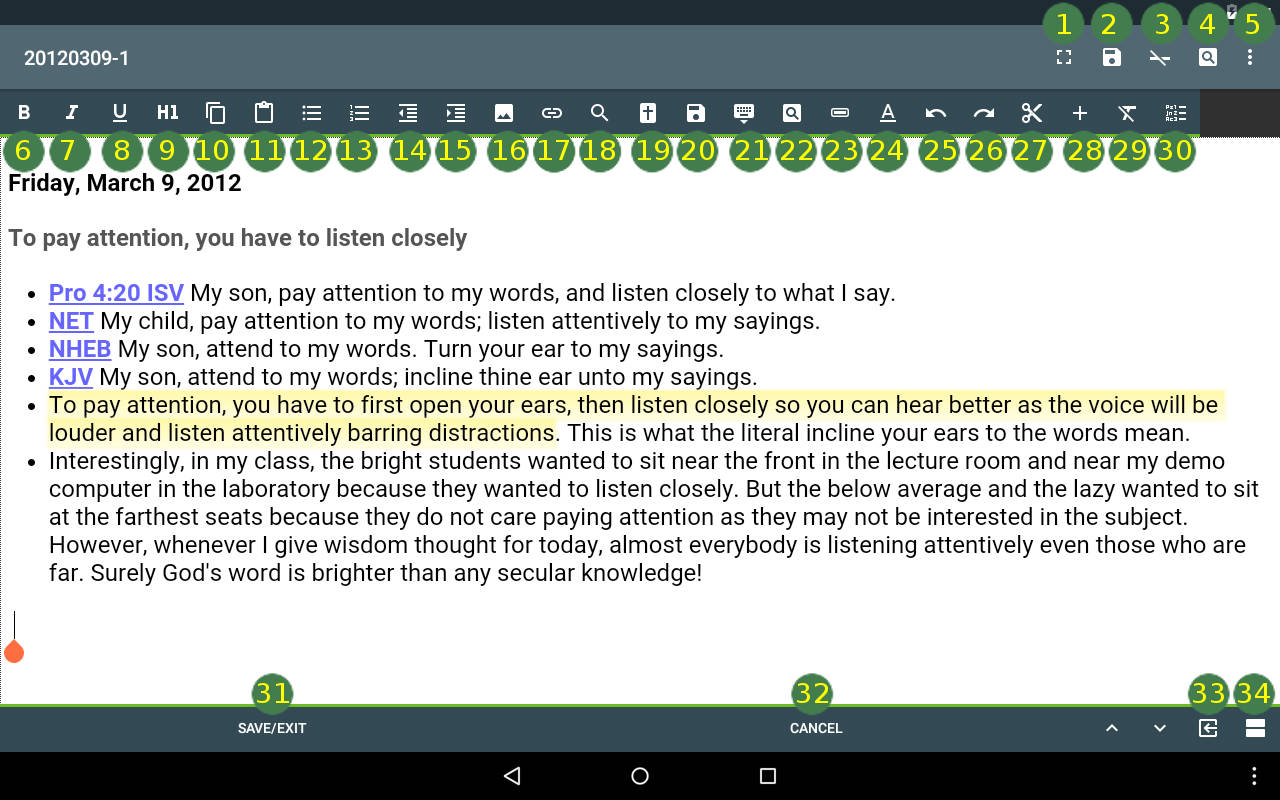
(The above Dark Material theme is only available in Lollipop and up, while an old Dark Holographic theme is available on Honeycomb up to Kit Kat. Old versions of MySword and Android use the Default theme.)
Below is the non-WYSIWYG version (Plain Wiki style Text Editor) using Modern icons (note that some icons/functions are only available in WYSIWYG):
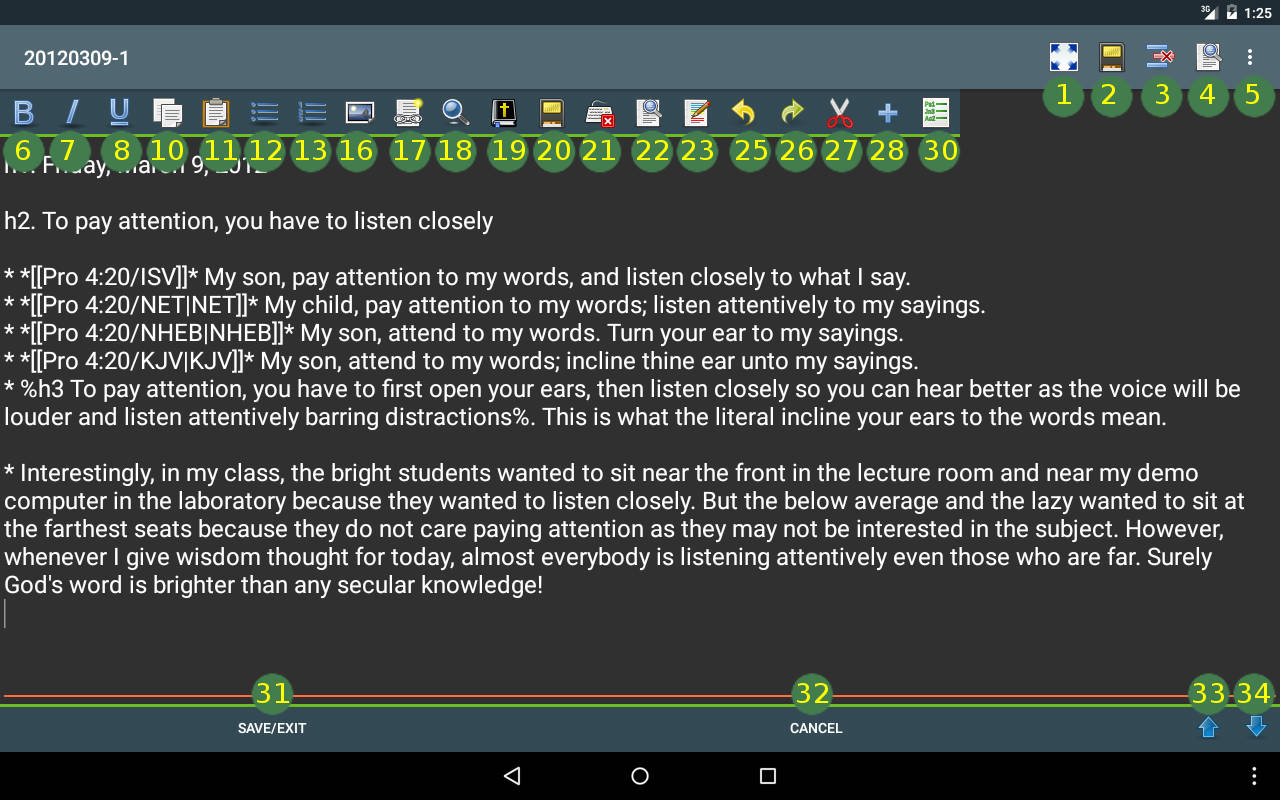
The following describe each with some sample Textile wiki and the rendered version:
- Full screen
- Toggle action bar button to switch between full screen and normal view.
- Action bar buttons (#1 to #4)) available only in Honeycomb and up version of Android and only if it will fit in the action bar. For Gingerbread and lower, you can use the Menu button to show these actions.
- Save
- Action bar button to save the contents of or updates in the editor.
- Delete line
- Action bar button to delete the entire line where the cursor/caret is.
- Preview
- Action bar button to see a preview of the contents of the editor.
- Menu
- Action bar button to show other menu items or action bar buttons that do not fit. The other menu items are:
- Hide keyboard
- Detect verses - converts all Bible verses into links
- Edit insight template
- WYSIWYG/Text editor - used to switch between WYSIWYG and Plain text editor
- WYSIWYG Limitations
- Auto save - Auto save preference number of minutes selection (1, 2, 3, 4, 5, 10 or Never)
- Arrange Buttons
- Bold
- The bold markup in Textile wiki is the asterisk (*).
- Select a text, then tap the Bold button to mark up it as bold. If you do not select a text, the markup characters (*) will be inserted where the cursor/caret is and the caret moved in between for you to type the text.
- This is in *bold*. => This is in bold.
- Italic
- The italic markup in Textile wiki is the underscore (_).
- This is in _italic_. => This is in italic.
- This is in *bold and _italic_*. => This is in bold and italic.
- Underline
- The underline markup in Textile wiki is the plus (+).
- This is *underlined*. => This is underlined.
- This is in *bold and _italic and +underlined+_*. => This is in bold and italic and underlined.
- Heading Style
- Choose from Paragraph, Heading 1 to 6 and Block quote to format the current block
- This is only available in WYSIWYG.
- Copy
- Copy the current text selection to the clipboard.
- Honeycomb and up versions with physical keyboards can also use Ctrl-C (tested only with ASUS Slider).
- Paste
- Paste the current text contents of the clipboard into the editor where the cursor/caret is located.
- Honeycomb and up versions with physical keyboards can also use Ctrl-V (tested only with ASUS Slider).
- Bullets
- Creates a bulleted list.
- The Textile wiki markup is an asterisk (*) at the beginning of the line (with a space separator). Nesting is done by having two or more * or # at the beginning.
- * This is one item in the list. => • This is one item in the list.
- Numbers
- Creates a numbered list.
- The Textile wiki markup is a sharp (#) at the beginning of the line (with a space separator). Nesting is done by having two or more * or # at the beginning.
- # This is one item in the list. => 1. This is one item in the list.
- Indent Less
- Indent the current block more to the right.
- This is only available in WYSIWYG.
- Indent More
- Indent the current block less to the left.
- This is only available in WYSIWYG.
- Image
- Open the Image Manager where you can upload an image to the Journal database, select an image to insert into the Journal Entry or delete an image from the Journal database.
- This is not supported by Personal/Verse Notes Editor in old versions of MySword, versions prior to 4.0.
- Insert Link
- For non-WYSIWYG, the markup for the links is [[ and ]]. For the Free version of MySword, these mark up characters are inserted where the cursor/caret is and the caret automatically placed at in between.
- Example Bible verse link: [[Joh 3:16]]
- Example Bible verse link with custom text: [[Joh 3:16|John 3:16]]
- Example Bible verse link with specific translation: [[Joh 3:16/KJV]]
- Example Bible verse link with specific translation and custom text: [[Joh 3:16/KJV|John 3:16 in KJV]]
- Example Strong's number link: [[H1]], [[G25]]
- Example Commentary entry link: [[c JFB 2Co 8:1]]
- Example Dictionary entry link: [[d Morrish Abba]]
- Example Notes entry link: [[n Gen 1:1]]
- Example Book entry link: [[j Wight-Manners Tent Dwellings]]
- Example Journal entry link (to the same Journal): [[j 20120216-1|MySword 3 Features]]
- Example Journal entry link (to other Journal): [[j 4-MyNotes 20120216-1|4-MyNotes: MySword 3 Features]]
- The Premium version of MySword makes the insertion of links a lot easier through a dialog chooser of what type of link to insert, what module and what verse, word or topic from the module. However, this feature is also available only in the Journal Editor (not in Personal Notes Editor) for the Free version of MySword.
- After you selected a Bible verse for Bible link, a dialog is shown for you to choose what to do with the selected verse, insert either:
- Link
- Link verse range
- Verse with text
- Verse range with text
- Verse compare
- For other module types a link is automatically created.
- Search
- This is a Premium version feature of MySword that allows you to perform searches without leaving the Editor. However, this feature is also available only in the Journal Editor (not in Personal Notes Editor) for the Free version of MySword.
- A dialog will be shown for you to choose what type of module to search after which the specific Module Search window is shown.
- In the search results list, if you tap a result link (or select the Go to selected button) the search will exit and will show a dialog of what to do with the selected result item for Bible search result similar to Insert Link above. For other module types a link is automatically created.
- Mini Bible Viewer
- This is a Premium version feature of MySword. This will open a simple Bible viewer where you can select the translation you want, navigate to a verse and copy text to clipboard for later pasting into the Editor. This will help you not leave the Editor in case you want to locate a Bible verse through navigation (not the Search function) then copy and paste verses into the Editor.
- Save without Exit
- Save the edited text without leaving the Editor. This will also automatically hide the virtual keyboard.
- Hide Virtual Keyboard
- Hide the virtual keyboard is very useful if you want to see more lines of text of your content.
- Note that there is also a Menu->Toggle Full screen to enable you to see more lines but at the sacrifice of hiding also the top and bottom button bars.
- Preview
- Shows a preview of the edited content in HTML rendered form. It is also available in the Menu.
- Highlight
- Highlights a selected text or inserts highlight markup tags in case no text is selected. This will show the Insert Highlight window similar to the one used by the Main window for you to select from.
- Note that the highlight is dependent on the Color Theme chosen so it will vary depending on the current theme.
- The markup is a MySword extension to Textile wiki using %cssclassname text% format.
- This is %h1 highlighted%. => This is highlighted.
- Format
- Opens up Format menu:
- Alignment
- Subscript
- Superscript
- Text size
- Font
- Numbered list
- Style (CSS)
- Style parent tag
- Edit HTML
- Remove Format
- This is only available in WYSIWYG.
- Undo
- This is a Premium version feature.
- Honeycomb and up versions with physical keyboards can also use Ctrl-Z (tested only with ASUS Slider).
- Redo
- This is a Premium version feature.
- Honeycomb and up versions with physical keyboards can also use Ctrl-Y (tested only with ASUS Slider).
- Cut
- Honeycomb and up versions with physical keyboards can also use Ctrl-X (tested only with ASUS Slider).
- Insert
- Insert any of the following:
- Insight template - the template can be edited using the Menu->Edit insight template
- Date today - Premium version feature
- Date and time - Premium version feature
- Icon - Deluxe version feature
- Symbol / special character> - Premium version feature
- Greek character - Premium version feature
- Hebrew character - Premium version> feature
- Table - Premium version feature
- File link - Premium version feature
- Paragraph
- Block quote
- Horizontal rule (line)
- Line break
- Anchor/Bookmark - a destination for a link within a page
- Insight template is available for all versions of MySword (Free, Premium or Deluxe).
- Icon is only available in the Deluxe version of MySword.
- All the rest are only available in both the Premium and Deluxe versions of MySword.
- Icon is only available in MySword 4.0 and up.
- Remove Format
- Remove the formatting for the current selection.
- This is only available in WYSIWYG.
- Verse List
- Opens up the verse list menu used to insert verses from the Verse List into the Editor.
- Save with Exit
- Save the edited text then exit the Editor.
- Cancel Edits
- Exit the Editor without saving the updates. In case there are no updates, the Editor will immediately close. But if there are any updates, there will be a confirmation dialog if you want to discard the changes.
- Scroll Up
- Scrolls the cursor/caret position in Editor's text content up.
- Long tap for scroll to the top-most.
- Scroll Down
- Scrolls the cursor/caret position in Editor's text content down.
- Long tap for scroll to the bottom-most.
Other MySword Textile Wiki Tags
The following are the other Textile wiki tags available to MySword Editor:
- Heading tags (h1 to h6)
- Use the hn. text format where n is a number from 1 to 6.
- Example: h1. This is in heading 1.
- Paragraphs
- All lines not beginning with # or * are HTML paragraphs. Two paragraphs are separated by one extra empty line.
- Breaks
- A paragraph can have an HTML break if there is no empty line separator between two lines.
- Paragraphs inside bulletted or numbered lists
- Using a hyphen (-) after the list tags (* or #).
- *- This will add a paragraph after the previous bullet item where the paragraph is still inside that list item.
- This is a special extension of MySword to Textile wiki.
- Table
- Simple table support using pipes where the first row is always considered the header and is styled appropriately (bold and centered).
- You can also apply text alignment of left, center and right by placing <, = and > after the pipe, respectively. For example, Data 2 and Data 4 are right aligned:
| _Col 1_ | _Col 2_ |
| Data 1 |> Data 2|
| Data 3 |> Data 4| - Images with custom CSS styles
- Custom CSS styles can be included with images (enclosed between exclamation points) like this: !{width:64px}myphoto.jpg!
The New WYSIWYG/Rich Text Editor
With MySword 5.0, a WYSIWYG or Rich Text Editor is now available for Jellybean or higher. There are some limitations in Jellybean though but it works well in Kitkat. Please visit that link to learn more about the new buttons and how to use them.
Searching
In MySword app's Search screen, there is a help button on the action bar (or accessible via the Menu) that explains the different types of search.
These are the types of searches available in MySword:
- Standard or Default/Ordinary Search
- The Default/Ordinary Search is simply a contains all the strings/words type of search. That means ear will also match hear, tears and ears. There is no any word search feature.
- The Standard type search is fast, does not require any special index that consumes additional storage space but searches on the raw content and thus the punctuation marks, HTML tags and other special Bible tags are included.
- This is sufficient for the following cases:
- Simple search like one word or multiple words search
- Bibles without much tags like KJVLite or no tags at all like BBE
- Searching through translators' notes
- Languages not using accents or diacritical marks
- This is not suited for the following cases:
- Phrase search where a punctuation mark, HTML tag or Bible tag may separate the words
- Prefix only or Exact search
- Ignoring accents or diacritical marks
- Exact
- This is a non-FTS exact word/phrase search available only in the Deluxe version. Exact words are used and prefixes, suffixes and text containment are not considered.
- If you want an exact phrase, you can enclose the phrase in double quotes. For example, "I am the Lord" will return 162 entries in KJVLite (but in Standard, only 1 entry because all other entries have the word am in italics, i.e., there are tags between the words).
- Note also that Exact search ignores accents or diacritical marks
- No accents (diacritics)
- Use this for accent/diacritical marks-free search (available in all versions). This is useful for Greek, Latin and other European languages.
- It is also useful for phrase search enclosed in double quotes though it is still not exact as prefixes, suffixes and text containment are all included. For example, "I am the Lord" will return 162 entries in KJVLite (but in Standard, only 1 entry because all other entries have the word am in italics, i.e., there are tags between the words).
- Prefix and Exact (No accents)
- This is similar to No accents (diacritics) but excludes all suffix matches, i.e., only those matches that matches the beginning of the word are matched so exact words and prefix are matched. For example, cry will match the words cry and crying but not outcry as cry is a suffix.
- If you want an exact search and you are using the Deluxe version of MySword, you can use Exact or FTS - Exact / No accents. But if you only have the Premium version or Free version of MySword, you can use the Regular expression (No accents).
- You can also exclude a word or phrase just like the case of Standard search.
- Regular Expression (No accents)
- The Regular expression (No accents) search also uses the same index used by the Exact, No accents (diacritics), and Prefix and Exact (No accents). The Java/Android Regular Expression pattern matching is used on the app-side and not the database-engine side unlike the other search types so this is slower (4 to 5 seconds in Nexus 7 2012 edition searching ISV from Genesis to Revelations). But you can achieve exact search for example: \bcry\b will only match the exact word cry as \b is for word boundary. This search is intended for advanced users.
- Note that space is still used as keywords separator so that \bwill of God\b means 3 regular expression tests (\bwill, of and God\b) where all must be matched. If you want to match a space for a phrase search, you will have to use \s (whitespace), e.g. \bwill\sof\sGod\b, or use . (dot matches any single character including whitespace) as a quick shortcut, e.g. \bwill.of.God\b.
- Also note that the more complex the Regular expression is the slower the execution so please narrow the range of books.
- Here is the complete Regular expression syntax.
- The Regular expression search does not support word/phrase exclusion though.
- FTS (full-text search)
- The FTS is a word stem (root) type of search similar to the one used by search engines like Google. This is made possible by using SQLite Porter Stemmer.
- For example, ear will also match ears but not hear. Consequently, all stems are prefixes only. FTS is a lot faster than the Default search because the FTS is indexed while the Default is not.
- The Default search will check all records at the database engine level (filtered by the verse range in Bible and Commentaries) while FTS will use the FTS index so few records are accessed.
- FTS - Exact / No accents
- FTS type of search not using Porter Stemmer so it behaves like exact word/phrase search; this is also an accent/diacritical marks-free search (available only in the Deluxe version).
- You can use operators that are only available in FTS search like Boolean OR, proximity/nearness NEAR.
- Highlight
- You can list all the verses where you had a specific highlight by selecting this type of search and the highlight color.
- Note that the Search Keyword box contents are blanked and ignored in this type of search.
- Tags
- This allows you to search tags in the Bible that you had inserted by specifying the tag and/or keywords in the note.
- If you want to search for a specific tag, select the specific tag (which can also be - All -).
- If you want to search irregardless of the presence of tag notes, keep the Search Keyword box empty.
- If you want to search for a specific note keywords, supply the text in the Search Keyword box. Note that the search method for the notes is similar to the Standard type and there is no FTS.
- Format
- The Format search is available only in Bible search and searches the formats added by the user like bold, italic, underlined, highlight, color and box color. For this search, the search keyword is not used.
FTS is automatically enabled for Journals and Books but is optional for encrypted modules and is a Premium Feature (donation activated) for other modules.
What are available to the Standard Search:
- Contains any of the keywords (prefix, suffix or infix) at any position. E.g.:
- ear know for Proverbs NET will give:
- Pro 1:7 Fearing the LORD is the beginning of moral knowledge...
- ...
- Pro 23:12 Apply your heart to instruction and your ears to the words of knowledge.
- ...
- acquire wisdom will give 5 items:
- Pro 4:5 Acquire wisdom, acquire understanding; do not forget and do not turn aside from the words I speak.
- Pro 4:7 Wisdom is supreme - so acquire wisdom, and whatever you acquire, acquire understanding!
- Pro 16:16 How much better it is to acquire wisdom than gold; to acquire understanding is more desirable than silver.
- Pro 19:8 The one who acquires wisdom loves himself; the one who preserves understanding will prosper.
- Pro 23:23 Acquire truth and do not sell it - wisdom, and discipline, and understanding.
- ear know for Proverbs NET will give:
- Phrase search where keywords are enclosed in double quotes. E.g.:
- "acquire wisdom"for Proverbs NET will only give 3 items:
- Pro 4:5 Acquire wisdom, acquire understanding; do not forget and do not turn aside from the words I speak.
- Pro 4:7 Wisdom is supreme - so acquire wisdom, and whatever you acquire, acquire understanding!
- Pro 16:16 How much better it is to acquire wisdom than gold; to acquire understanding is more desirable than silver.
- "acquire wisdom"for Proverbs NET will only give 3 items:
- There is no Any keyword search (Boolean OR).
- There is no exact phrase/word as the Phrase search can match the suffix of a beginning word or prefix of the ending word.
- If you want Exact search, you have to use the Exact type of search which is available only in the Deluxe version of MySword.
- Punctuators between keywords in a phrase search are not ignored.
- "wisdom and" will not match ... wisdom! And fools...
- You can also search for Strong's number by preceding the number with H for Hebrew or G for Greek. For example, H2451. If the number is less than 4 digits, you have to place a > sign at the end so that other Strong's number with more digits will not also match. For example, H561> (but note that the search key will not highlighted in the result because of >).
What are available to the FTS Search:
- Root word kind of search just like the search engines (Google, Yahoo, etc) reducing the need to use Boolean OR:
- The search key faithful will also match faith, faithful and faithfulness because they are all reduced to the word stem faith (by the Porter stemmer) but not faithless (because of a different stem)
- The Porter stemmer is just an English approximation though and is not perfect. The search key move will not match moving nor movement, it will only match move, moved and moves.
- If you want Exact word search, you have to use the Exact types of search (Exact or Exact - FTS) which are available only in the Deluxe version of MySword.
- All search are prefix root only search so that search key ear will not match bear or hear.
- "Phrase search" is better as in between punctuators are now ignored. But note that it is still not an exact search due to word stemming.
- Boolean OR is supported (must be capitalized in order to distinguish from search key or).
- move OR moving will match: move, moves, moved and moving
- "drink water" OR "drank water" OR "drunk water" will do phrase match of any of those variants.
- Parenthesized search for combining OR and the default AND (but the highlighter do not yet support this so nothing might be displayed). The above can also be written as (drink OR drank OR drunk) water.
- Proximity/nearness search
- great NEAR faith will match those words (plus those with similar stems) where there are zero up to 10 words between them.
- great NEAR/2 faith will match only those where there are zero up to 2 words between them.
- Word exclusion, NOT word using -
- drunk -water will match those with the word drunk but must not contain water.
Creating Exact, No-accent and FTS Indexes
It will take around 1 minute to 5 minutes to build the special index depending on the speed of the Android device and the size of the module. Also note that building an FTS index will require more than double the original module size while the exact or no-accent (non-FTS) will require almost double the original size so make sure the SD card has sufficient space. The Exact and No-accent index is shared between these two types.