Sow your Seed
If you are blessed using this software, please consider giving a generous seed to help us continue to support, improve, and upgrade MySword. Thank you very much for your support 
New Version - v.17.0.1
MySword 17.0.1 is just a bugfix which fixed 7 bugs due to Material 3 Theme which included Non-Compact mode menu long tap or the 3 dots at the end of a verse crashing.
Please note that only the Free version is available in Amazon (also previously in Google Play and Samsung Galaxy Store) while the one available from this website can be upgraded to Premium or Deluxe version. The website version can always be installed over the Store version by enabling "Allow from this source" for the particular app that will open the APK (Chrome or any File Explorer/Manager) for new devices.
If your device is not Google Play Store enabled or you can't download the app from Google Play, in your Android device's browser, click either of the download links below.
DownloadLatest MySword for Android v.17.0.1 - 30 March 2026
DownloadOlder version of MySword v.16.9 - 20 February 2026
The above latest version targets Android Baklava (API 36) but requires All files access permission. The latest version below targets Android Pie (API 28) and requires Storage access permission.
DownloadMySword for Android v.17.0.1-P - 30 March 2026
DownloadOlder MySword for Android v.16.9-P - 20 February 2026
If you want, you can also Download Old Versions of MySword here.
Note: When you download using Google Chrome in your Android device, a message will appear saying:
This type of file can harm your device. Do you want to keep mysword4android-{version number}.apk anyway?
This is just a generic warning from Google Chrome (other browsers may say a similar warning) because you are downloading an APK outside Google Play. Just tap OK.
Please also note that the latest version of MySword (MySword 11.1 and higher) requires Lollipop (Android 5.0) or higher. If your device is ICS (Android 4.0) up to Kitkat (Android 4.4), please download the older version MySword 11.0 below. If your device is Gingerbread 2.3.1 or Honeycomb, please download the older version MySword 9.1.2 below. If you still have Eclair or Froyo, please download an even older version of MySword 7.4 below.
DownloadOlder version of MySword v.11.0 - 11 March 2020 (ICS, Jellybean, Kitkat)
DownloadOlder version of MySword v.9.1.2 - 2 June 2018 (Gingerbread/Honeycomb)
DownloadOlder version of MySword v.7.4 - 6 December 2016 (Eclair/Froyo)
For MySword to be properly installed in your Android device please see Installation Instructions.
- Installation Instructions
- Bugs fixed in Version 17.0.1
- What's new in Version 17.0
- Bugs fixed in Version 17.0
- What's new in Version 16.9
- Change Log of MySword - Old Versions to latest
Installation
After the download and you are prompted to Open, tap Open then select Package Installer if asked. If Chrome asked:
For security, your phone is not allowed to install unknown apps from this source.
Tap Settings, then make sure you enable installation by tapping Allow from this source. Then tap Back (or the top left arrow). Then tap Install.
If you missed tapping the Open and the dialog was closed after the download, you can still install via your File Manager/Explorer. Locate the downloaded APk file then tap it to install.
If a message from Google Play Protect shows:
Unsafe app blocked
MySword Bible
This app was built for an older version of Android and doesn't include the latest privacy protections...
Tap Install anyway. If the Install anyway option is not available, tap More details to expand other options and tap Install anyway and not the OK button.
After successful installation, run MySword. Depending on the version of MySword you are installing and the version of your Android device, either of the two permission message will appear:
- For newer devices (and you are using the latest Target Android Baklava version) the following message will appear for MySword 16.7 and higher and if you are installing on new versions of Android:
All files access is required for downloaded modules like Bibles for the app to work. Please grant the permission on the next confirmation box.
Tap OK. Then tap MySword Bible to enable it (like common apps, if any). Then tap the top left < arrow icon to return to MySword.
- If you are installing MySword 16.6 or lower, or you are installing on older Android versions, or you are installing the newer Target Android Pie version, the following message will appear instead:
Storage permission (access to files on your device) is required for downloaded modules like Bibles for MySword app to work. Please grant the permission on the next confirmation box.
Tap OK. Then tap Allow when this confirmation box appears:
Allow MySword Bible to access photos, media and files on your device?
You will then be asked to specify a folder in your SD card (or internal storage) as a place for the Bible, Dictionary and Commentary modules. You may choose to use the Default. After specifying that folder, you will be asked to download modules so that you can use MySword. You can choose the suggested modules (includes some popular English Bibles, Strong's dictionary and TSK commentary) or add more modules by tapping Bible, Commentary or Dictionary buttons and selecting modules).
You can also manually install any modules by downloading the GZip files from this site, unzipping them and copying them into the storage folder you had specified.
Enjoy God's word!
Bugs Fixed in Version 17.0.1
- Search x button to clear search keywords is missing in Material 3.
- The toolbar of the Editor in Split mode only spans the left pane.
- Editor's Popup notes dialog no longer have Use Full Editor option.
- Non-Compact mode menu (3 dot) link at the end of each verse causes a crash.
- Material 3 theme full screen is not fully immersive.
- Non-Material 3 theme Popups are slender/narrow unlike before or in Material 3.
- Material 3 theme Find and Editor's Find/Replace's text input is cropped at the top.
What's new in Version 17.0
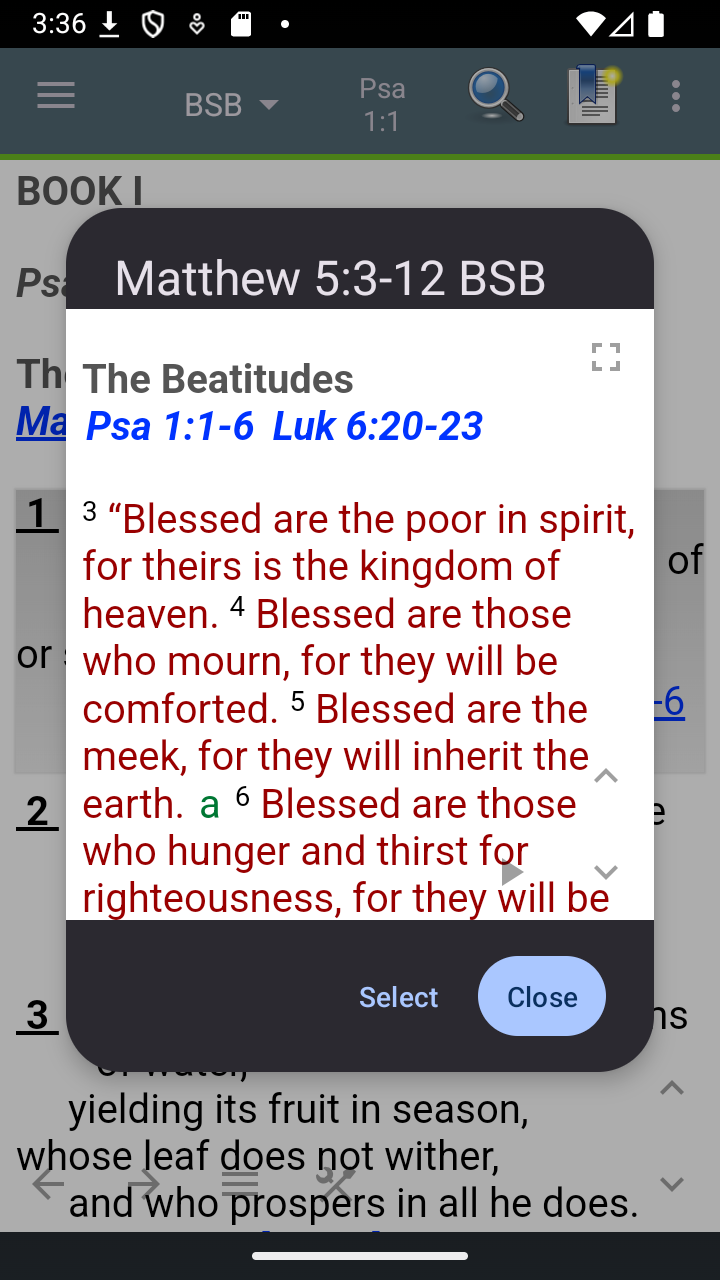
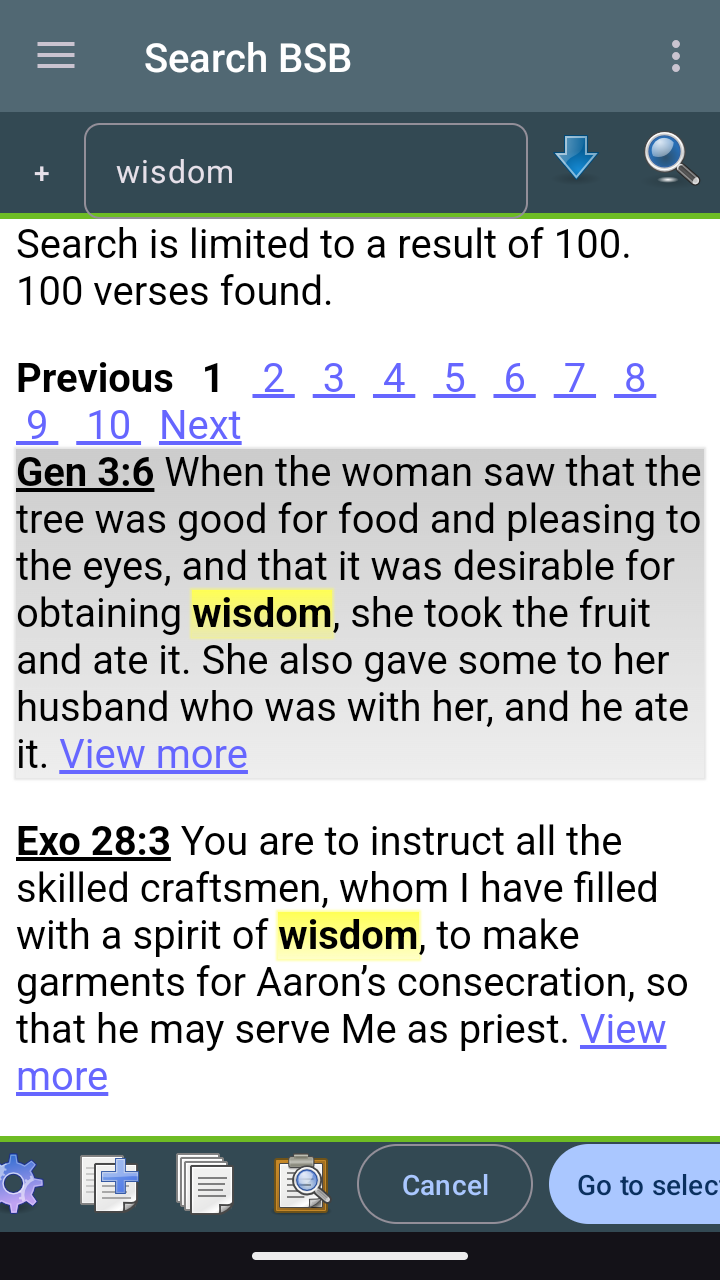
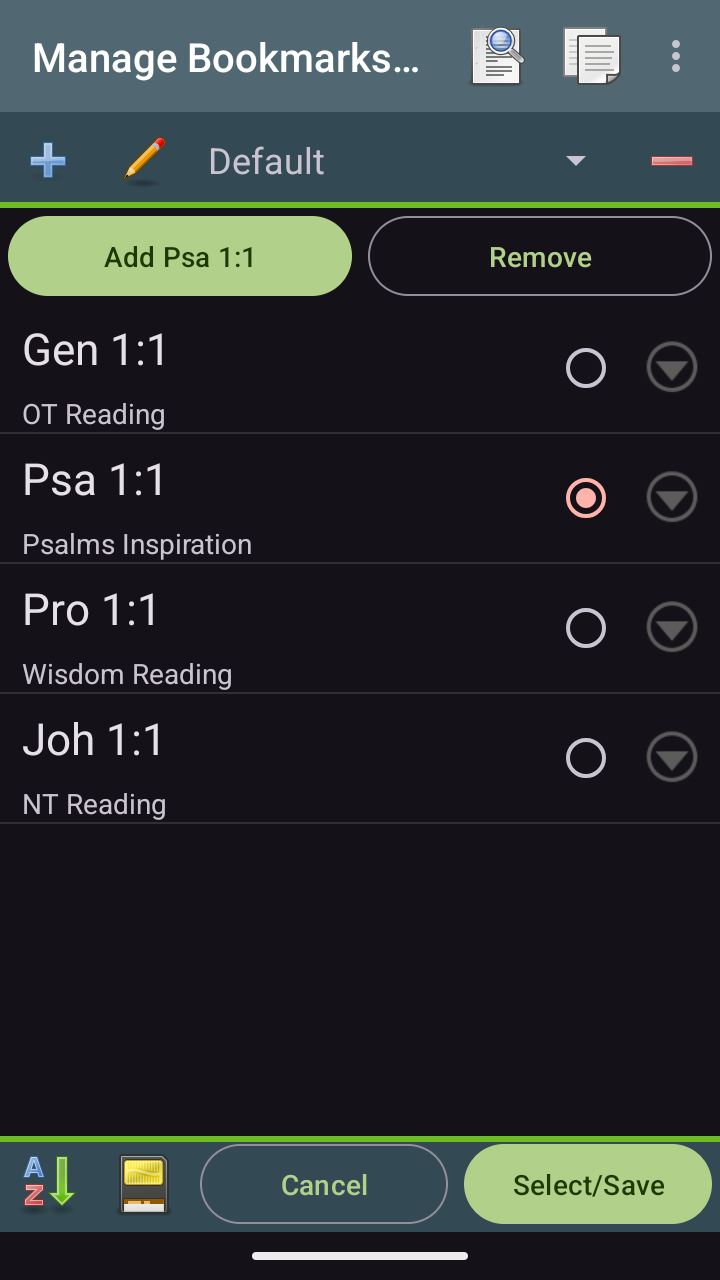
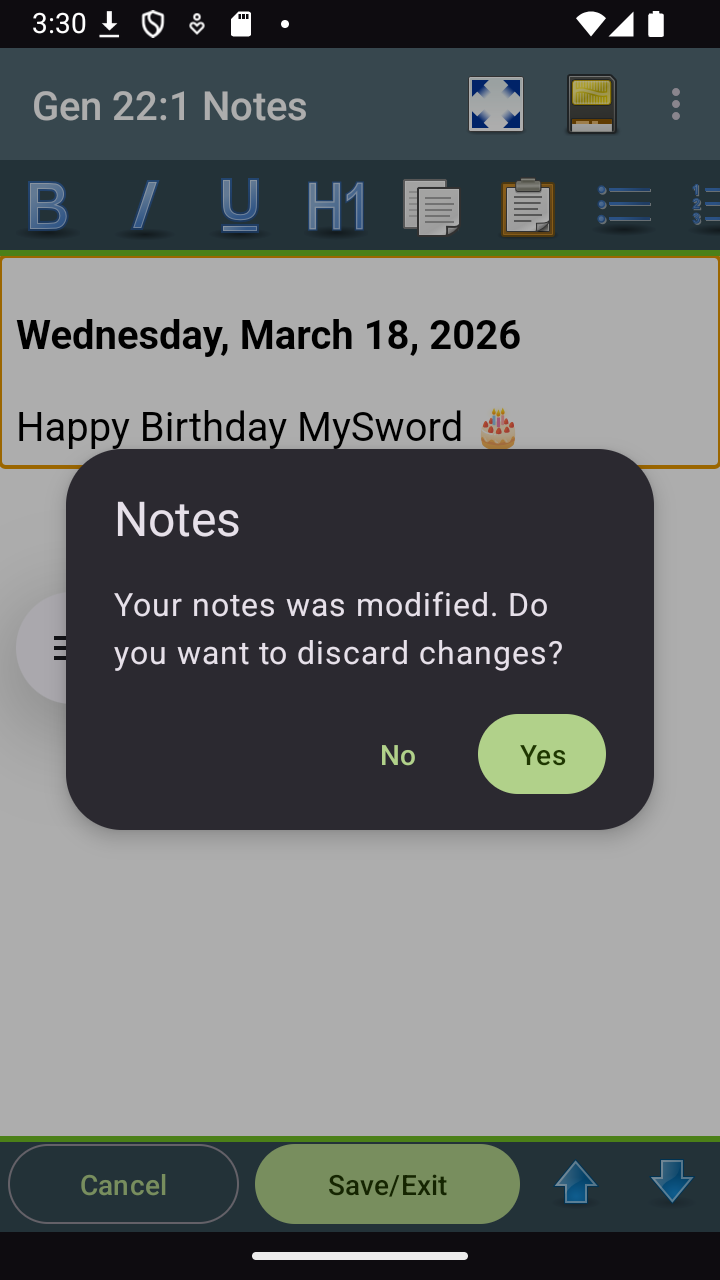
- New Android Themes: Dark/Light Material 3 Theme. Note that in dialogs and some screens, the placement of Cancel and OK/Save/Select are swapped so that the Cancel is usually on the left instead of the right in compliance with Android guidelines.
- Preference Full justification is changed from checkbox into list selection with the items: None, Automatic, Inter-word, Inter-character. The default is Inter-character which now happens to be supported by Chrome/Web View v.145 and higher. Note however, that the support is still a little buggy for Inter-character as the last word may not still be fully flushed to the right in some lines unlike Inter-word or Automatic.
Bug Fixed in Version 17.0
- Editor's Select Picture's Add dialog crops long description and id.
What's new in Version 16.9
- Reading Plan improvement: option to show Navigator similar to Bookmarks, Verse List and Search (and MySword Web's Reading). See Menu of the main Reading Plan screen.
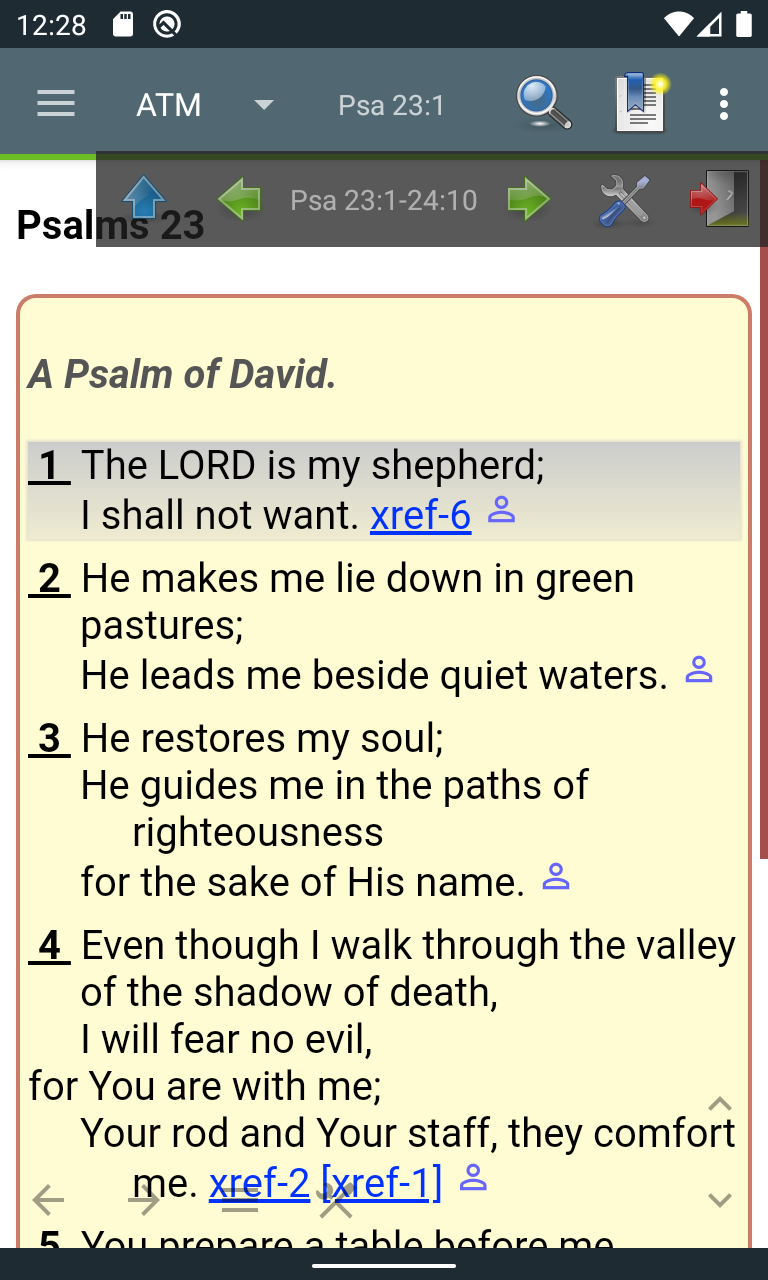
Enjoy God's word even more!